Multi-Folder
Workspaces.
Real projects span multiple folders. CrabPad workspaces let you group them together, keep your session intact, and switch contexts in a keystroke.
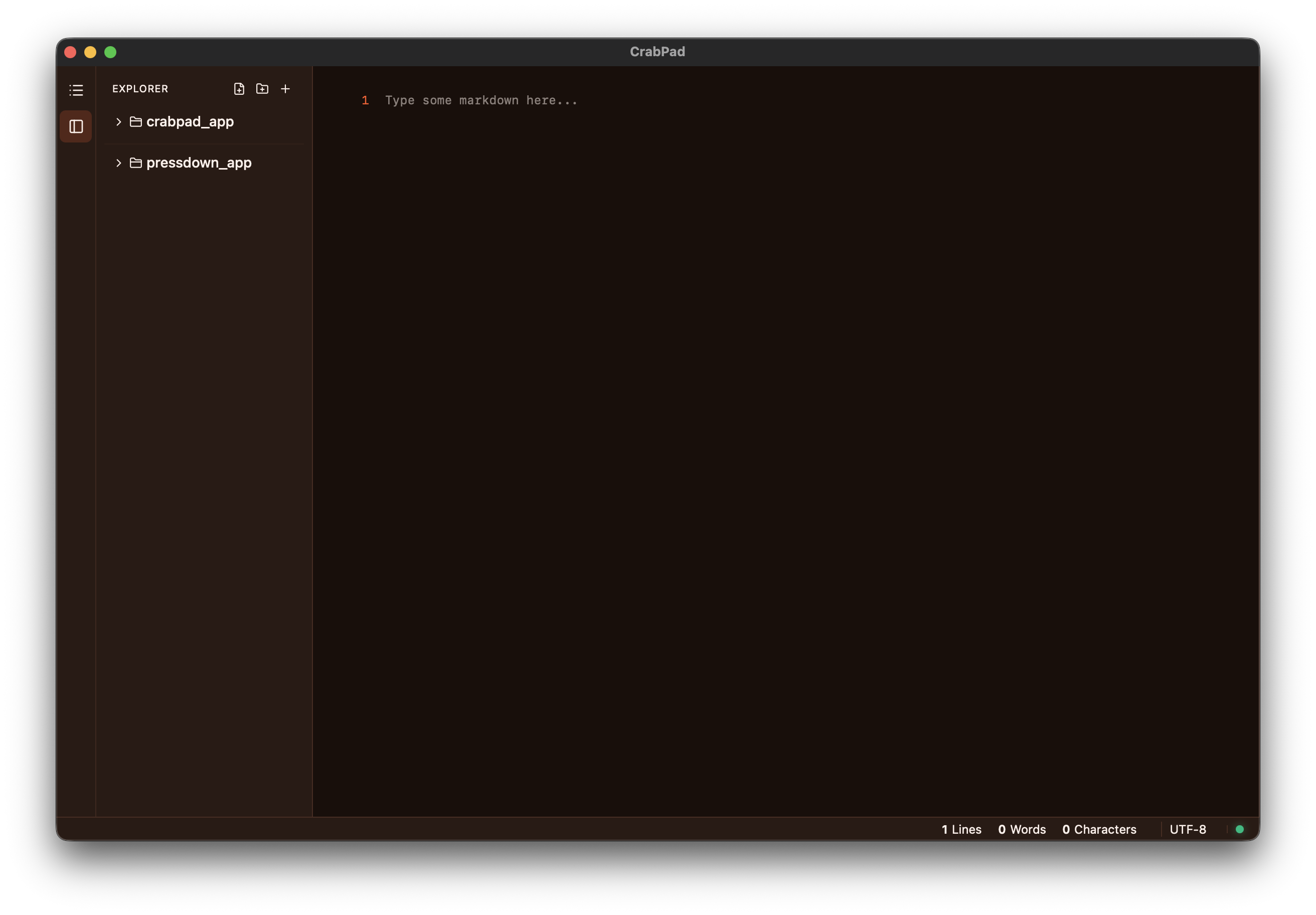
Multi-Root Explorer
Add as many folders as your project requires. Each root appears in the sidebar with its own collapsible tree. Create files, rename items, and delete paths directly from the explorer — no terminal needed.
Session Persistence
Close CrabPad and come back tomorrow — your open tabs,
cursor positions, scroll offsets, and sidebar state are
all restored exactly as you left them. Session data is
stored inside the .crabpad file alongside
your project.
Breadcrumb Navigation
A breadcrumb bar above the editor always shows where you are: workspace name, folder, and relative path. It's especially useful in large projects where multiple folders share similar file names.
File Operations
Right-click any file or folder to create, rename, or delete it. Hover to reveal quick-action buttons. Inline editing lets you type a name right in the tree without opening a dialog.
How to use Workspaces
Create
Open the Command Palette and run
Create Workspace. Pick a location
to save the .crabpad file, then
add folders.
Switch
Use Open Workspace from the Command Palette, or click a recent workspace on the Welcome screen.
Expand
Add or remove folders anytime with the
+ button in the sidebar or via
Add Folder to Workspace in the palette.